Custom Segments
Set up your Custom Segments for your Company
If your company is utilizing Custom Segments inside of NetSuite, Finsyte makes it easy to manage which custom segments are available for use inside of lists, dropdowns, and function calls. This includes any segments outside of the defaults of Location, Department and Class.
- Select Help > Preferences
- Select Custom Segments on the left hand side to navigate to their settings
- Any custom segments that your company has set up in NetSuite will be visible on the left hand side dialog called Custom Segments Available
- Select Any/All custom segments that you want included and visible from the Finsyte ribbon and select an Add option (Maximum of 125 segments allowed)
- Order the segments using the Move Up and Move Down buttons. This will determine which order the segments appear in the Data Retrieval section and in select function arguments
- Highlight a custom segment on the right hand side and type in an alternative Description as needed
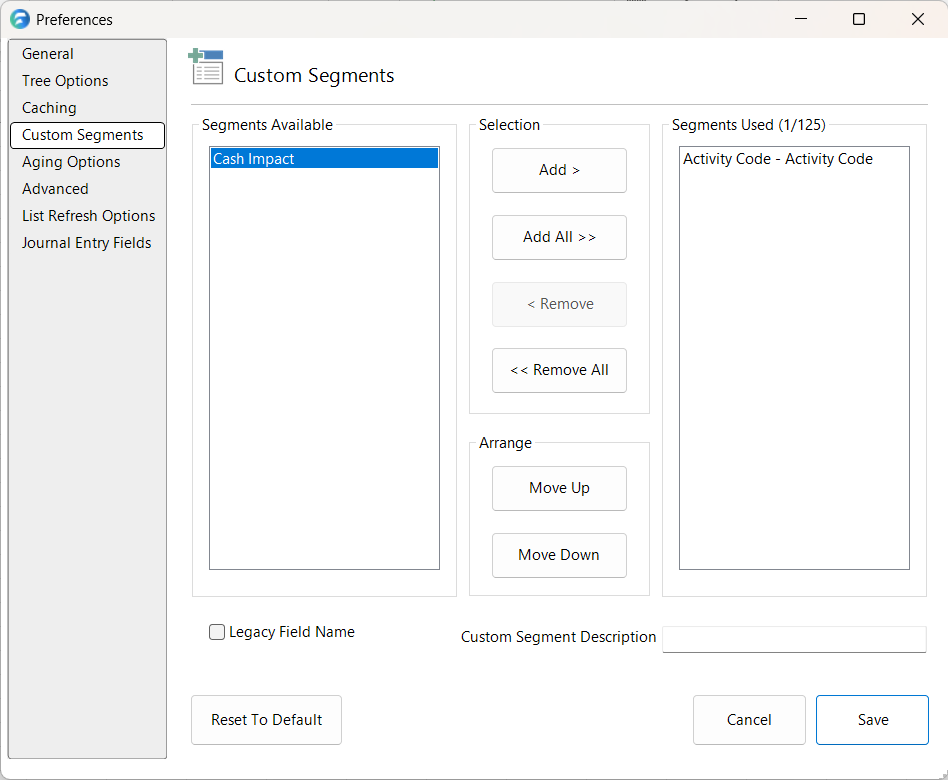
- Once the segments are set up, select Save and close out of Excel and Re-open to see the new options available
Note
Custom Segments set up in Preferences are applied to the entirity of a company, not on an individual Finsyte license basis. Keep this in mind as making adjustments to the segments that are visible could impact others.
When to use the Legacy Field Name
If you created custom segments in NetSuite prior to version 2019.1, check the Legacy Field Name box to utilize Custom Segments. Review this NetSuite documentation for more information.
Review Your Custom Segments
Once Custom Segments are set up in Finsyte, they will be accessible in Data Retrieval and as optional Function Arguments in certain Finsyte Functions.
Select From List > Custom Segments to see an option for Custom Segments as well as any specific segments that have been added.
Selecting a specific segment name from this menu will result in a new worksheet being created in the Excel workbook with the same name as the segment. Similar to standard NetSuite segments, this list will show all the properties and available valid values for that specific segment.
Custom Segment List
By selecting the List option of Custom Segments, a new worksheet will be added to the Excel workbook called Custom Segments that lists out properties and names of all available custom segments that have been set up in NetSuite. This is not limited to only the segments that have been selected in preferences.
Use Custom Segments in Functions
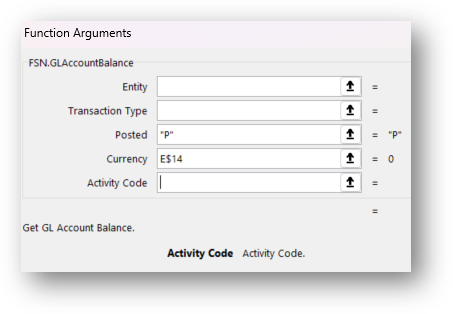
If custom segments have been selected from Preferences, they will be included in certain Functions such as the GLAccountBalance function. These segments will be additional optional function arguments available at the bottom of the argument list as seen in the image below. Activity Code is an optional custom segment added into Finsyte in the below example.