List Formatting
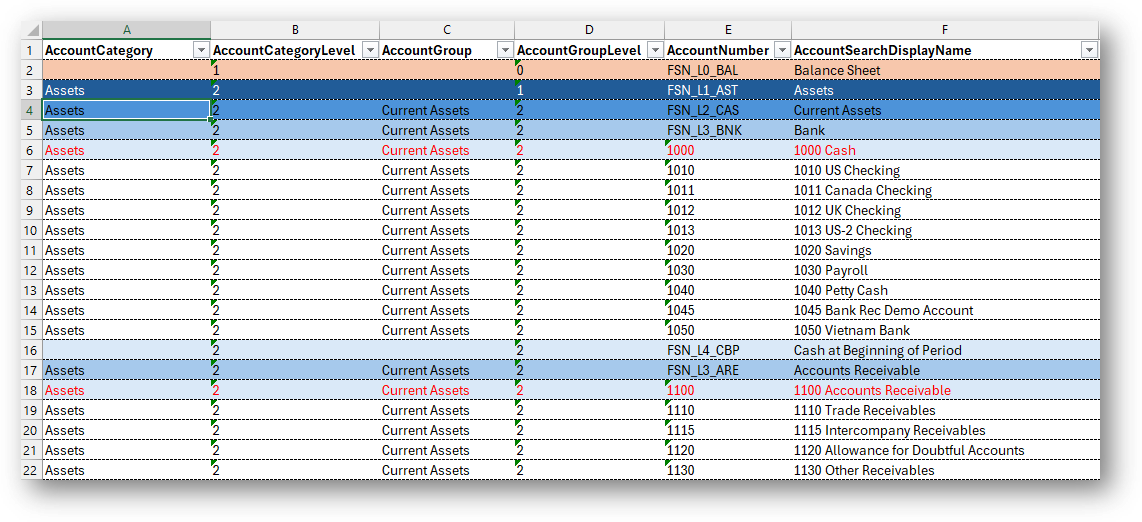
As seen in the image below, when a list is selected (GL Accounts is seen below) from the Data Retrieval section, there is default conditional formatting that gets applied.
Understanding the Default Conditional Formatting
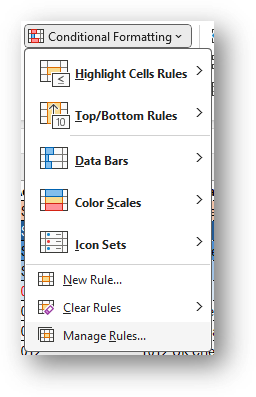
Let's say a user selects From List > GL Accounts. They are going to get a new Excel worksheet titled "GL Accounts" that displays their accounts in a series of colors. These colors are defined by the conditional formatting rules. If a user goes to Conditional Formatting > Manage Rules on the Home ribbon, they can easily see what rules have been applied to their list results.
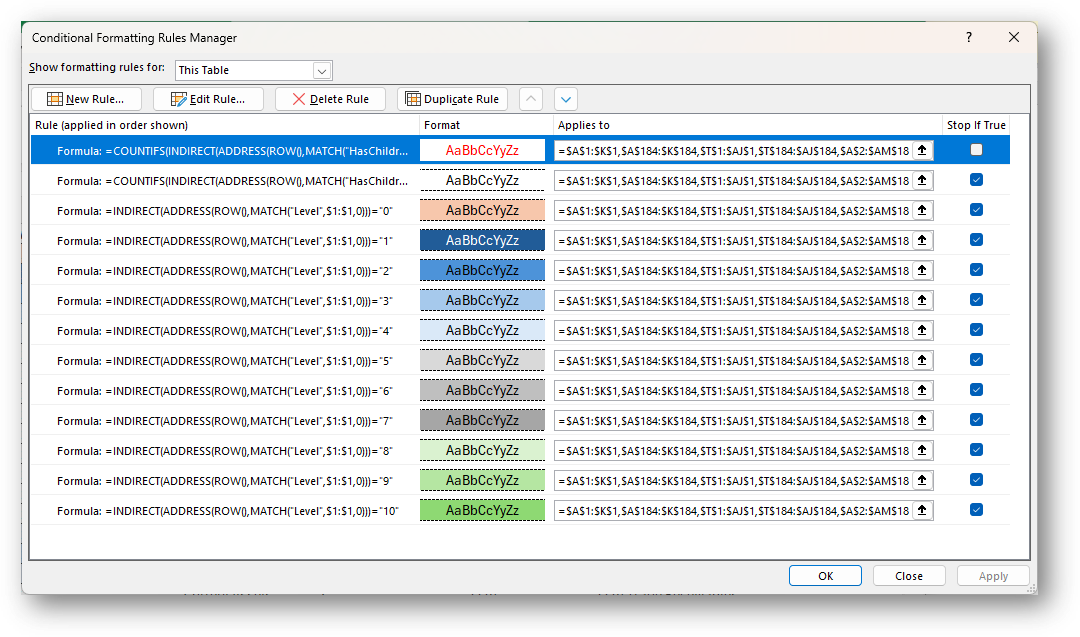
| Rule | Expression | Explanation |
|---|---|---|
| Problem with Account | =COUNTIFS(INDIRECT(ADDRESS(ROW(),MATCH("HasChildren",$1:$1,0))),"T", INDIRECT(ADDRESS(ROW(),MATCH("IsSummary",$1:$1,0))),"F")>0 | Identifies if an account is marked as True for the HasChildren field and then cross checks that with the IsSummary field. If the IsSummary is set to False (F), then there should not be any children which means if HasChildren is True (T), the field will be marked in Red. This rule does not prevent other rules from being added to the formatting of the row. |
| =COUNTIFS(INDIRECT(ADDRESS(ROW(),MATCH("HasChildren",$1:$1,0))),"F", INDIRECT(ADDRESS(ROW(),MATCH("IsSummary",$1:$1,0))),"F")>0 | If IsSummary and HasChildren are both set to false, this means the account record is the lowest level of detail and therefore will be formatted in white. This will also halt other rules from happening. Is this scenario where Level 5 (seen in screenshot of example) is the last level of the Account structure, all those fields are formatted in white rather than the very light grey defined below | |
| Level 0 Accounts | =INDIRECT(ADDRESS(ROW(),MATCH("Level",$1:$1,0)))="0" | If the level field is set to 0, format the field with a peach color |
| Level 1 Accounts | =INDIRECT(ADDRESS(ROW(),MATCH("Level",$1:$1,0)))="1" | If the level field is set to 1, format the field with a dark blue color |
| Level 2 Accounts | =INDIRECT(ADDRESS(ROW(),MATCH("Level",$1:$1,0)))="2" | If the level field is set to 2, format the field with a blue color |
| Level 3 Accounts | =INDIRECT(ADDRESS(ROW(),MATCH("Level",$1:$1,0)))="3" | If the level field is set to 3, format the field with a light blue color |
| Level 4 Accounts | =INDIRECT(ADDRESS(ROW(),MATCH("Level",$1:$1,0)))="4" | If the level field is set to 4, format the field with a very light blue color |
| Level 5 Accounts | =INDIRECT(ADDRESS(ROW(),MATCH("Level",$1:$1,0)))="5" | If the level field is set to 5, format the field with a very light grey color |
| Level 6 Accounts | =INDIRECT(ADDRESS(ROW(),MATCH("Level",$1:$1,0)))="6" | If the level field is set to 6, format the field with a light grey color |
| Level 7 Accounts | =INDIRECT(ADDRESS(ROW(),MATCH("Level",$1:$1,0)))="7" | If the level field is set to 7, format the field with a grey color |
| Level 8 Accounts | =INDIRECT(ADDRESS(ROW(),MATCH("Level",$1:$1,0)))="8" | If the level field is set to 8, format the field with a very light green color |
| Level 9 Accounts | =INDIRECT(ADDRESS(ROW(),MATCH("Level",$1:$1,0)))="9" | If the level field is set to 9, format the field with a light green color |
| Level 10 Accounts | =INDIRECT(ADDRESS(ROW(),MATCH("Level",$1:$1,0)))="10" | If the level field is set to 10, format the field with a green color |
Note
There are some lists, like Subsidiaries, that utilize slightly different color patterns. The logic for displaying the levels is the same however. Additionally, there are other lists, like the Transaction Types, Accounting Books, Budgets or Currencies, that display their fields with odd even row shading as the rules determined by conditional formatting do not apply.
Changing the Conditional Formatting
If a user decides they would like to see this list without the conditional formatting or with a different color scheme, they can follow these steps.
- Select anywhere within the table they are viewing
- Select the Home Ribbon > Conditional Formatting > Manage Rules
- From here, the user can either delete the existing rules to remove them, or edit them to adjust coloring