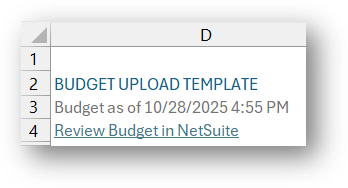
Budget Template
The Budget Template is used to download, review, and update budgets from and to NetSuite.
Budget Template Load from NetSuite
To load a budget template into Excel for NetSuite, follow the steps below:
- Select Bulk Edit > Budget Template to see a new tab called BudgetUpload created in your Excel workbook.
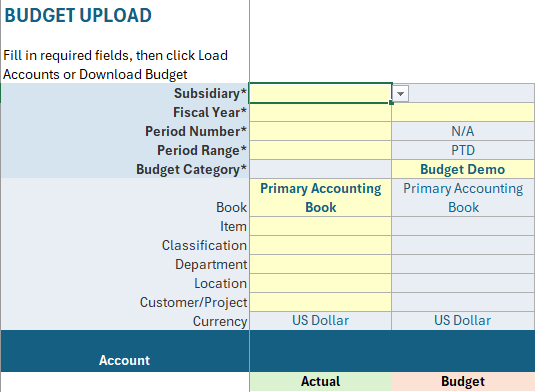
- Start by filling in the parameters at the top of the template. Notice that these parameters are for both Actual and Budget values to be returned.
- Select Load Accounts to determine which accounts will be included in the template.
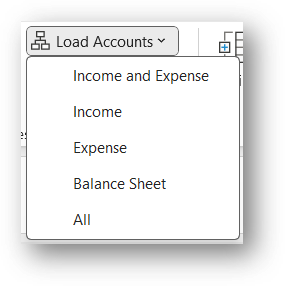
- If the incorrect accounts were selected, a user can select the Load Accounts option again for a reload or create a new budget template.
- Once the existing actual and budget values based on the inputted parameters are visible, a user has a series of options outlined below...
Remarks
- Parameters with asterisks (*) are required to load accounts.
- Dropdowns have been added to parameters where possible to make it easier for user selection.
- Consolidated Subsidiaries are not possible to select within this budget template as budgets are only created under one subsidiary at a time.
- When segments in the budget template are left blank, that specifically ties to a budget in NetSuite where no segment information was filled in rather than consolidating all budgeted amounts regardless of segment information. This is different than the way the BudgetAccountBalance function returns values.
Update an Existing Budget
Once Load Accounts is selected and budget values are returned, any value in yellow can be updated. To apply this update to NetSuite, simply select Upload Budget.

Create a New Budget
If no budget exists in NetSuite for a parameter set, no values will appear in columns F - R on the Budget Template once Load Accounts is selected. This blank template can be used to create a budget in NetSuite. Simply, type in budget values to any of the yellow filled boxes and select Upload Budget.
Upon doing so, the "Review Budet in NetSuite** link will be available in the top left corner of the template, confirming that the action has been completed.
Refresh an Existing Budget Template
If a user is not sure they have the latest budget information in their existing Budget Template, selecting Download Budget will clear out all values and fill them in once more with the latest NetSuite budget information given the parameters.

Example: Adjust Existing Budgeted Amounts
Once a budget is loaded from NetSuite into Finsyte, we make it easy to make changes to existing amounts or add additional budgeted amounts for other account numbers and then upload that information to NetSuite. Review the below steps for an example of how this is done.
- In the existing budget, I can see budgeted Revenue for 2025 is filled in for the Subsidiary: United States. To adjust the budgeted amount for Periods 9 - 12 (Sep 2024 - Dec 2024), I can simply type in the new budgeted amounts.
- Current Budget:
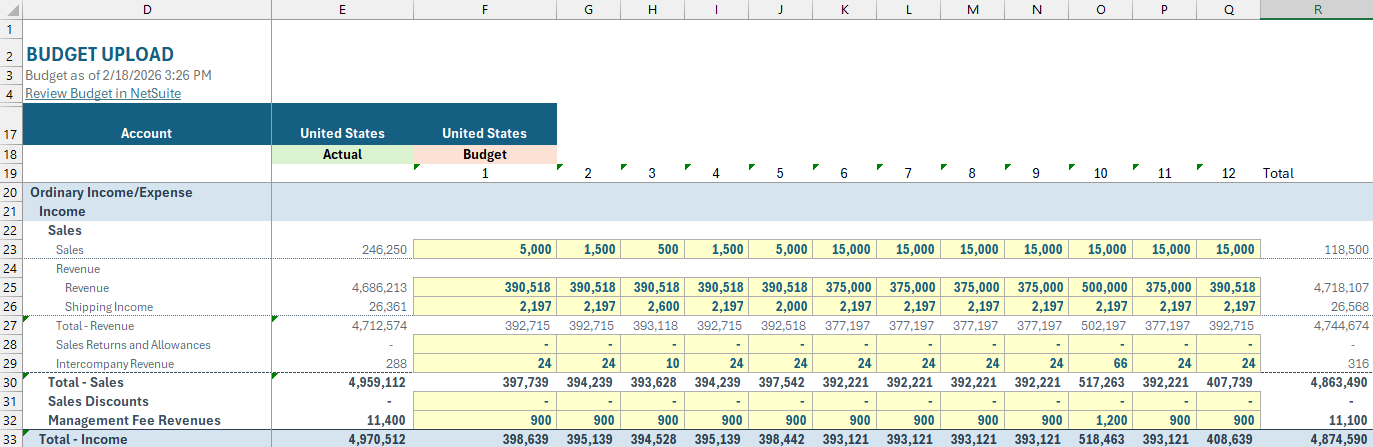
- Adjusted Budget:
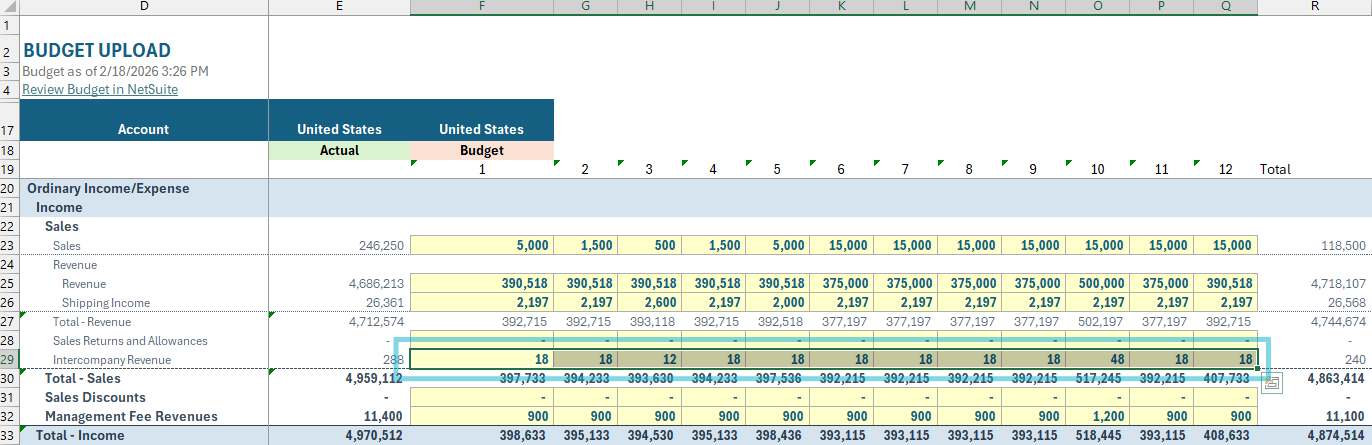
- Current Budget:
- Once an adjustment as been made, select the Upload Budget button in the Templates and Actions section.
- The Review Budget in NetSuite link is always available to confirm the budget adjustment in NetSuite.