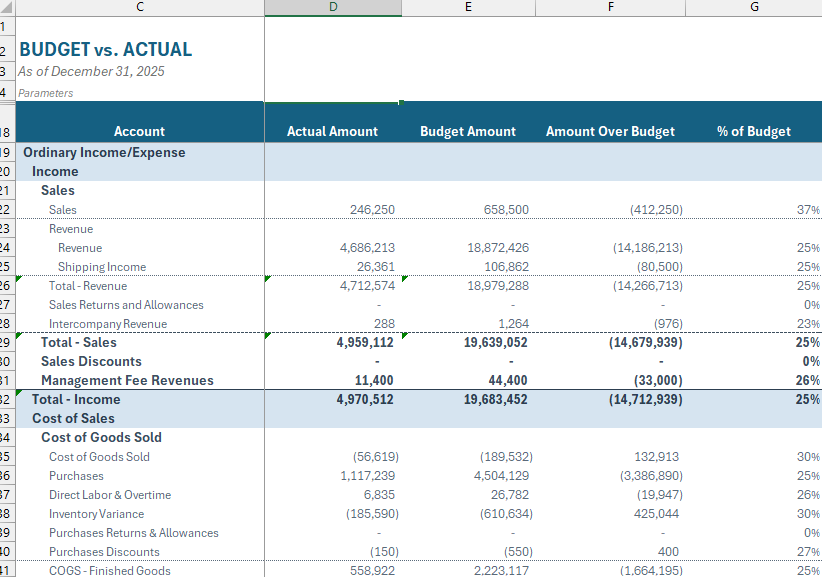
Budget vs Actual Template
The Budget vs Actual Template provides a clear side-by-side view of your Income Statement accounts, showing actuals, budgeted amounts and both the dollar and percentage variances.
Utilizing the Budget vs Actual Template
- Select Standard Reports > Budget vs Actual
- View the new sheet that has been created called Budget vs Actual
- Fill in all required parameters (asterisks by the names). Only enter values in the yellow highlighted cells. The greyed out parameters will auto-fill.
- Select the now activated button in the ribbon under Actions of Load Accounts. Finsyte will go to NetSuite to return the appropriate list of GL Account numbers and balances based on the identified parameter inputs.
The following columns are returned:
| Column Name | Function |
|---|---|
| Amount | Returns the actual account balance for the row's GL account or subtotal. |
| Budget Amount | Returns the budget account balance for the row's GL account or subtotal. |
| Amount Over Budget | Returns the difference between the Budget Amount and the Actual Amount values in currency. |
| % of Budget | Returns the percentage of Actual Amount over Budget Amount. |
Remarks
- Review the GL Accounts list to understand what accounts will be available for the income statement. Every account that falls under the system generated account of FSN_L0_INC will be returned. The Parent column in this table also helps to determine the tree structure seen in the template.
- Review the Subsidiary column in the GL Accounts list to understand which accounts utilize which subsidiaries. The SubsidiariesHasAccess column generated by Finsyte can also be insightful for this.
- If a change is made to the subsidiary input field in your template, please select Load Accounts again to properly return the correct account list as it may change.
- Aggregate functions are utilized on the totals for groups in the financial statement to ensure proper totaling.
- The accounts under Income have reversed signs for totaling purposes.
Example Budget vs Actual Report
- Select Standard Report Templates > Budget vs Actual to get the initial template
- Fill in the parameters (required with *) at the top of the sheet and select Load Accounts to get full account list with account balances and totals.
- Adjust parameters as needed. If subsidiary is adjusted, account list may change which means the Load Accounts action should be selected again after subsidiary adjustment.
- The Switch Signs operation has already been applied to corresponding account sections.