GLAccountBalance Function
Definition
The GLAccountBalance function returns the balance of a GL Account based on a series of arguments.
Function Arguments
| Argument Name | Input Information | Required |
|---|---|---|
| Subsidiary | Subsidiary Name | No |
| Fiscal Year | Fiscal Year in the format specified in NetSuite | Yes |
| Period | Period Number (ex: 1 for January) | Yes |
| Period Range | Valid values include ITD, YTD, RTD, QTD, PTD, TTD | Yes |
| Account Number | Valid Account Number | Yes |
| Book | Book Number. Default is 1 if omitted. | No |
| Item | Item ID | No |
| Class | Classification Name | No |
| Department | Department Name | No |
| Location | Location Name | No |
| Entity | Entity Name | No |
| Transaction Type | Transaction Type | No |
| Posted | Specified whether to include only Posted (P) or Non-Posted (NP) Transactions. Valid values are P (default) or NP. | No |
| Currency | If left blank, will default to the currency defined by the Subsidiary. Currency Names are listed in the Data Retrieval section of the ribbon. | No |
| Custom Segment Parameters | Custom segment filter values. Multiple custom segments can be specified. | No |
Remarks
- There are some accounts from the GL Accounts list that are only accessible from certain subsidiaries. To review this, refer to the SubsidiaryHasAccess column in the GL Accounts list.
- If you are trying to create a trial balance for reviewing all accounts and confirming that they total to zero, be sure to include the GLAccountRetainedEarnings function as well.
Example
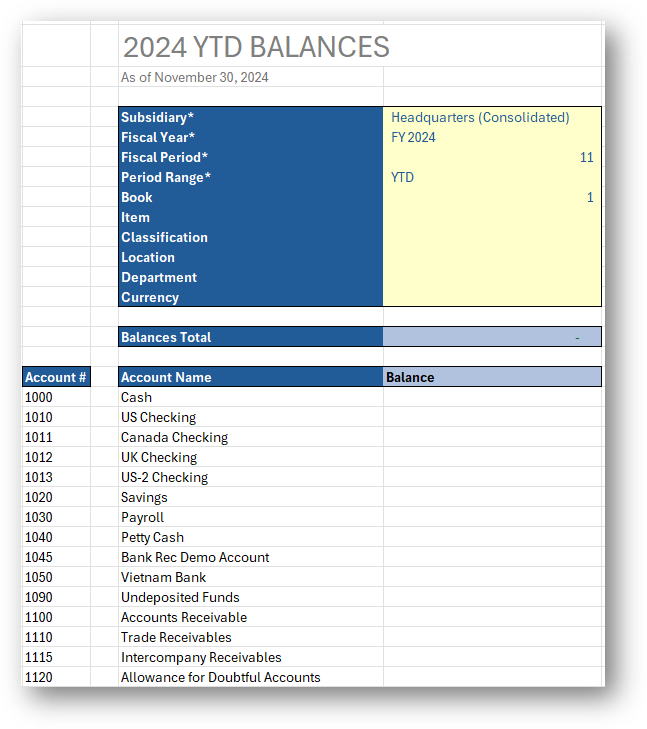
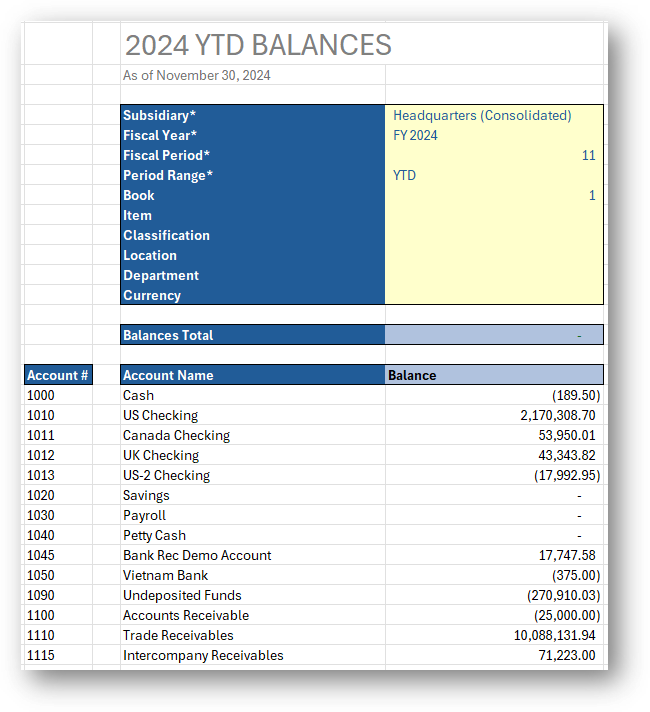
Let's say you want to see the account balance for all accounts in FY 2024 for your Consolidated Subsidiary as of the current period, you can do this using the GLAccountBalance function.
- Start by having a place where all required function arguments can be entered. This will include your list of GL Accounts as well.
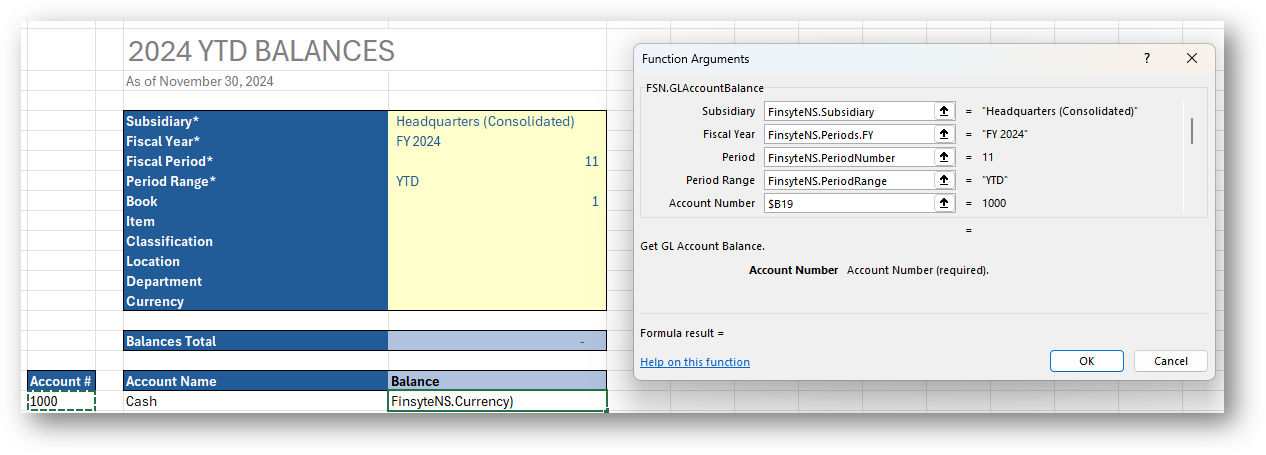
- Select Finsyte Functions > GLAccountBalance
- Link all function arguments including Account Number. Use the F4 key for cell referencing as needed.
- Select OK to see the first balance returned. Drag or double click to apply the formula down to all account numbers.
Note
Right click on the amount to Drill Down into more detailed information about specific account balances.