Comparative Trial Balance Template
A Comparative Trial Balance is a financial statement that presents a company’s general ledger account balances for two or more periods side by side. This format allows stakeholders to analyze changes in account balances over time, identify trends, and more easily spot anomalies or shifts that may require further review.
Unlike a standard trial balance that shows balances for a single period, a comparative trial balance displays multiple periods (typically two consecutive fiscal periods) in adjacent columns, along with variance calculations showing both absolute and percentage changes.
Utilizing the Comparative Trial Balance Template
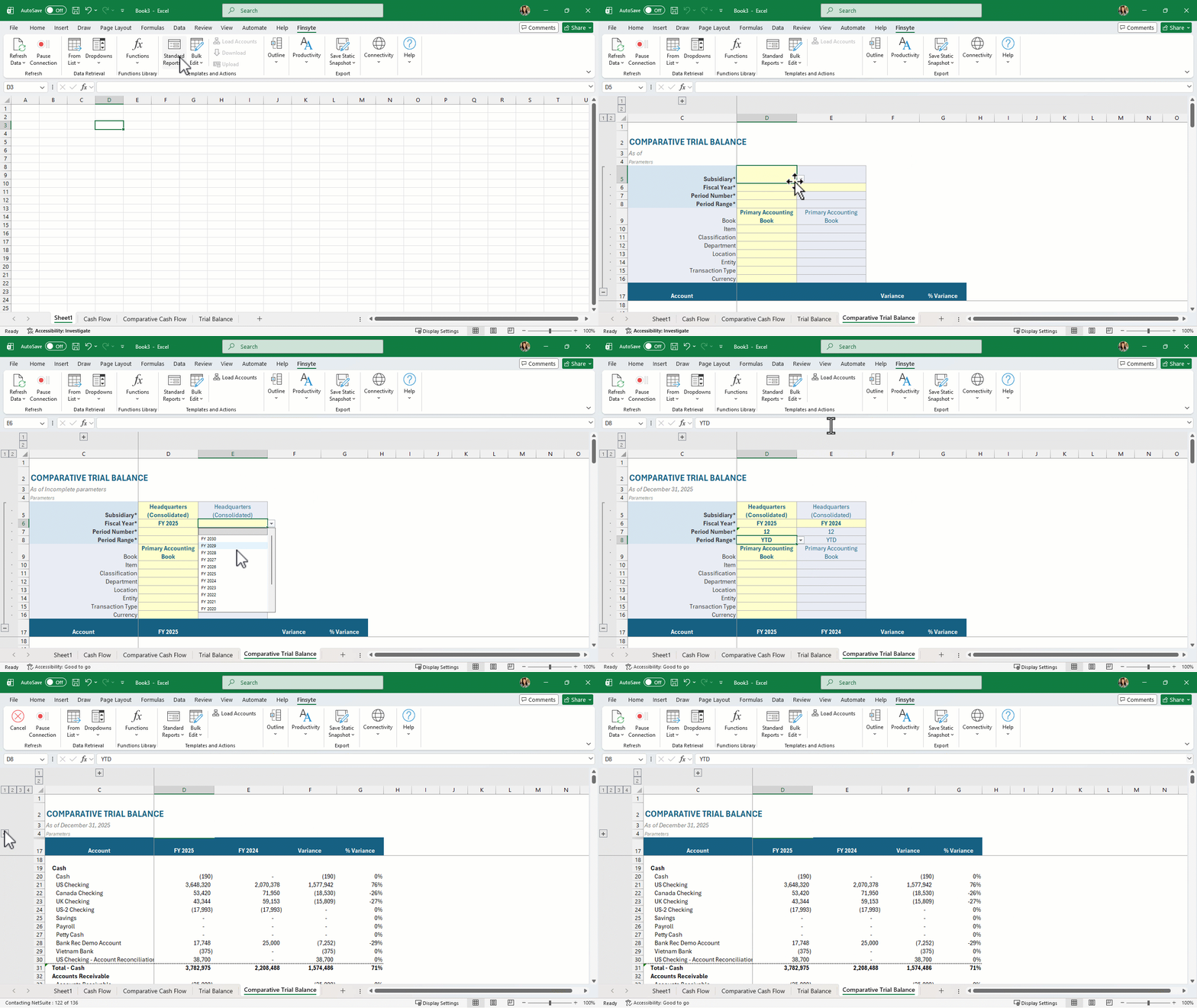
- Select Standard Reports > Trial Balance > Comparative Grouped Trial Balance
- View the new sheet that has been created called Comparative Trial Balance
- Fill in all required parameters (asterisks by the names)
- Select the now activated button in the ribbon under Actions of Load Accounts. Finsyte will go to NetSuite to return the appropriate list of GL Account numbers and balances based on the identified Subsidiary input.
- Adjust parameters as needed. If subsidiary is adjusted, account list may change which means the Load Accounts action should be selected again after subsidiary adjustment.
- The Switch Signs operation has already been applied to corresponding account sections.
Note
Comparative Trial Balance: This template returns a flat list of all accounts and their balances for the specified parameter inputs. Comparative Grouped Trial Balance: This template returns the full list of accounts and balances organized using your company's NetSuite chart of accounts structure given the specified parameter inputs. Refer to the GL Accounts list for more information about this grouping structure.
Remarks
- By default, the Comparative templates are set up to evaluate two years and produce amounts, Variance and % Variance. Adjusting the subsidiary, period number, or another segment in column E could also be done to compare different values in this way.
- Review the GL Accounts list to understand what accounts will be available for the trial balance. Every account that falls under the system generated account of FSN_L0_BAL will be returned. The Parent column in this table also helps to determine the tree structure seen in the template.
- Review the Subsidiary column in the GL Accounts list to understand which accounts utilize which subsidiaries. The SubsidiariesHasAccess column generated by Finsyte can also be insightful for this.
- If a change is made to the subsidiary input field in your template, please select Load Accounts again to properly return the correct account list as it may change.
- Aggregate functions are utilized on the totals for groups in the financial statement to ensure proper totaling.
- The accounts under Income, Liabilities and Equity have reversed signs for totaling purposes.