Understand Your Data
Finsyte makes it easy to review NetSuite information needed for financial reporting. The options found in Data Retrieval on the Finsyte ribbon contain lists and dropdowns that display relevant data.
From List
Selecting an item from this section will create a new tab in your Excel workbook where all relevant field information about a selected list is displayed.
In addition to the options listed below, any custom segments that are added to your NetSuite company's Finsyte instance will be visible for selection from this list as well.
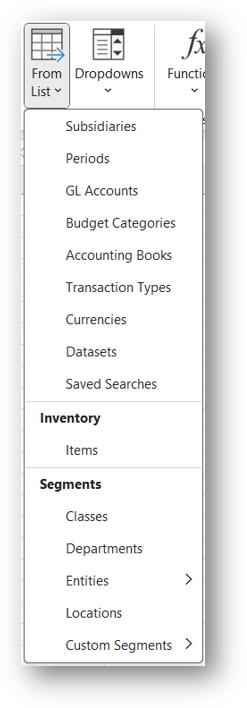
Utilizing a List
By selecting GL Accounts, a new tab called GL Accounts is created. This list includes all General Ledger accounts that a user gets access to based on their NetSuite Role and the permissions under that role.
In the GL Accounts List, a user will not only see the AccountNumber and Account Display Name, but also things like AccountCategory and AccountGroup for high level organization of accounts, Id and Parent for identifying rollup structure, IsSummary, Subsidiary for understanding which accounts should be utilzied for financial reporting based on which subsidiary is being references, and more.
Additionally, there is a field called SubsidiaryHasAccess that makes it easy to filter the GL Account list based on Subsidiaries by name.
Understanding List Excel Formatting
When a list is created, there is conditional formatting that is applied by default to the Excel sheets. To understand this formatting better, refer to the List Formatting documentation.
SmartArt Hierarchies to Understand Segment Information
To quickly and easily analyze Subsidiary or Segment hierchical structures from your NetSuite data, there is an option called Hierarchy under the From List dropdown.
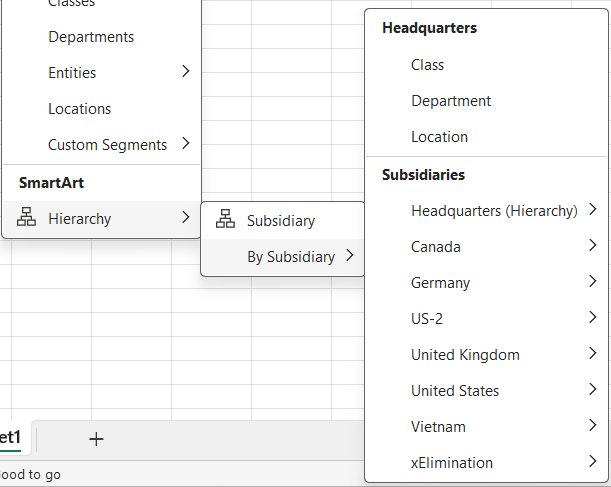
By selecting Subsidiary, the full hierarchical structure of subsidiaries a user has access to will be shown using Microsoft Excel's SmartArt feature.
Selecting a segment (Class, Department or Location) will return the hierarchical structure of those possible segment values based on the chosen subsidiary.

Dropdowns
Selecting a dropdown will place a drop-down list (as known by Excel) inside of a singular cell. It will outline that cell with borders to ensure it's easy to view and it will utilize the official names for that dropdown selection outlined by NetSuite. These dropdowns are used in existing templates as well for faster reporting.
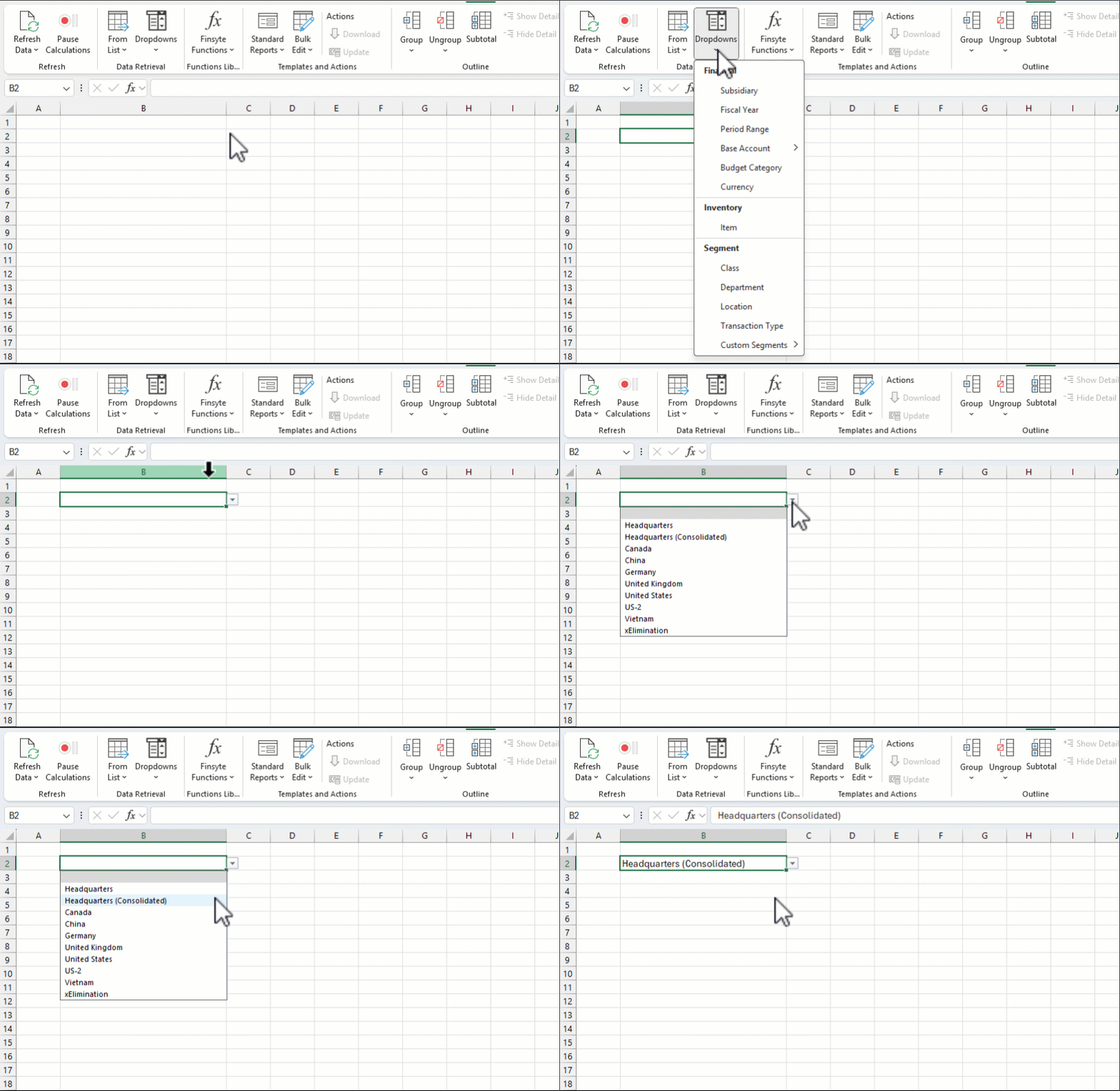
In addition to the options listed above for dropdowns, any custom segments that are added to your NetSuite company's Finsyte instance will be vavailable as dropdown lists as well.
Segment Hierarchies Available
Similar to what's available in NetSuite filters, provides Segment Hierarchies to be selected from the Dropdown lists for Locations, Departments and Classes.
These hierarchies are a way of selecting a segment, location for example, that has children locations underneath and returning the results for all children and the parent.
For example, let's say I have a location of Boston and then that location has three children locations: Boston: Boston MRB, Boston: Boston Quarantine, and Boston: Boston Receiving Inspection. In the dropdown list, here are the options I will see available to me.
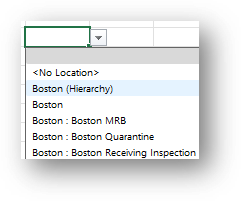
By selecting Boston, I will only see the Boston Location's information returned. The same thing applies if I select one of the child locations below Boston. However, if I instead select Boston (Hierarchy), the resulting values for any returned balances will summarize all four Boston-based locations available.
Segment Hierarchies Defined in Lists
To understand how hierarchy segment options become available, review the Lists for each of the segments.
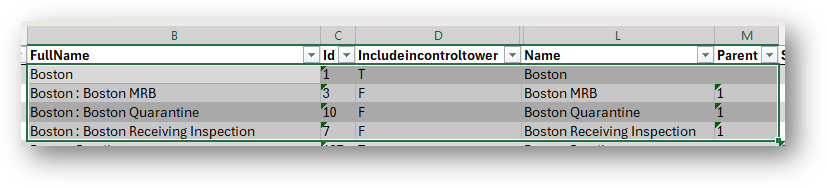
For example, in the Locations list, the Parent column will identify if a location record has a parent. That parent number is tied to the Id column.
As seen in the image below, the three Boston Locations with colons are marked with Parent of 1 and the Boston location itself has an Id of 1 to match.