Intercompany Journal Entry Template
The Intercompany Journal Entry Template is used to upload Advanced Intercompany Journal Entries that track transactions across subsidiaries.
Intercompany Journal Entry Template Fields
Journal Entry Number
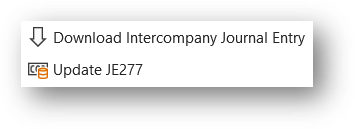
The Journal Entry # field will be used to indicate which options are activated in the Finsyte Ribbon. How it works when viewing an existing intercompany journal entry.
- To create a new Intercompany Journal Entry, leave the Journal Entry # blank and fill in the required inputs. The number will populate once the entry gets created.
- To Download an existing Intercompany Journal Entry, enter in the exact Journal Entry Number (ex: JE188). This field is case sensitive.
Parameters
| Parameter | Information |
|---|---|
| Subsidiary | Required - Select an option from the dropdown. Consolidated Subsidiares are not available for Journal Entry Uploads. |
| Date | Required - Defaults to today's date. This will be the date the transaction is marked as posted. |
| Book | Defaults to 1. |
| Currency | Will utilize the currency under the Subsidiary selected unless an alternative currency is selected from the dropdown list. |
| Exchange Rate | If a point-in-time exchange rate should be specified for this transaction, that will go here. |
| Memo | This is a free text field for titling the Intercompany Journal Entry. |
| Posting Period | If the journal entry should be marked as posted in a different period than the one that the Date will fall into, select that Period here. |
| Reversal Date | If the journal entry is set to reverse on a specific date, specify that here. |
| Out of Balance By | Not an input field. If this number is not exactly 0, the Journal Entry will not successfully update to NetSuite. |
Remarks
- As this is a more advanced operation, review NetSuite's instructions around Intercompany Journal Entries for additional information.
- To create intercompany journal entries in Finsyte and/or NetSuite, be sure to review permissions in NetSuite as this is not always turned on. If a company only has one subsidiary for example, there would be no need for this template to be used.
- A minimum of four rows of data are required to successfully update an intercompany journal entry template to NetSuite from Finsyte.
- Whatever amount(s) is credited from the subsidiary will be placed in an Intercompany account before being debited to a different subsidiary.
- Review the Subsidiaries List to see the IntercompanyEntity field names which are used for the Name field in the template.
Transaction Lines
| Field | Information |
|---|---|
| Subsidiary | Type in or select the Subsidiary Dropdown to choose a subsidiary name. |
| Account Number | Type in an account number from the GL Account list. |
| Account Name | Typing in the Account Number will automatically return the Account Name using the GLAccountName function. |
| Debit | Amount Balance. Currency will depend on Subsidiary or optional currency parameter. |
| Credit | Amount Balance. Currency will depend on Subsidiary or optional currency parameter. |
| Memo | Optional note about the transaction line being entered. |
| Name | Option Entity Name until the transaction line utilizes the Intercompany accounts. Review example below. |
| Department | Optional segment details. Select the Department Dropdown to more easily select a Department. |
| Class | Optional segment details. Select the Class Dropdown to more easily select a Class. |
| Location | Optional segment details. Select the Location Dropdown to more easily select a Location. |
| Start Date | Optional field often used in conjunction with Revenue Recognition and Amortization features. Review documentation link to NetSuite above. |
| End Date | Optional field often used in conjunction with Revenue Recognition and Amortization features. Review documentation link to NetSuite above. |
| Due To/From Subsidiary | Type in or select the Subsidiary Dropdown to choose a subsidiary name to transfer the balances to or from. |
| Custom Segments (If Applicable) | Any custom segments that are included in a Finsyte instance will show up at the end of the Journal Entry template. Easily review options for each custom segment by pulling in their respective dropdowns. 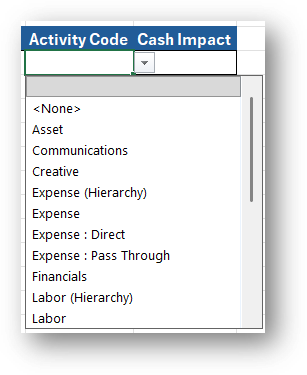 |
Examples
Creating a New Intercompany Journal Entry
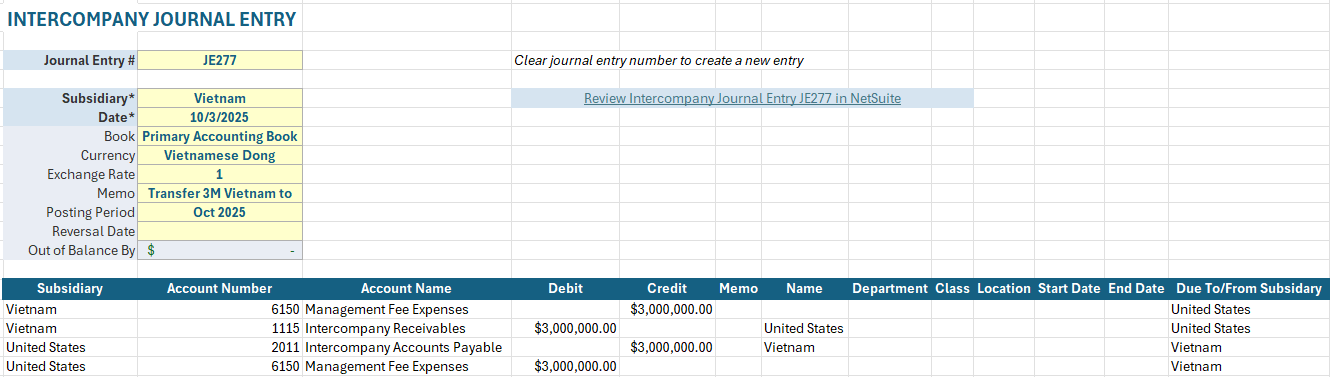
Let's say a user wants to transfer 3 million Vietnamese Dong from their Vietnam subsidiary to the United States Subsidiary.
- Start by selecting Bulk Edit > Intercompany Journal Entry Template
- Fill in Vietnam as the Subsidiary parameter as this is the subsidiary (and currency) this transaction will start in
- Type in a Memo of "Transfer 3 M Vietnam to US"
- First Row: Transferring Money From
- Subsidiary: Vietnam
- Account Number: 6150 (Removing money from the Management Fee Expenses Account)
- Credit: 3,000,000
- Memo: Transfer to US
- Due To/From Subsidiary: United States
- Second Row: Transferring Money From
- Subsidiary: Vietnam
- Account Number: 1115 (Placing money in the Intercompany Receivables account)
- Debit: 3,000,000
- Memo: Transfer to US
- Name: REP-United States (from the Subsidiary List IntercompanyEntity field name)
- Due To/From Subsidiary: United States
- Third Row: Transferring Money Into
- Subsidiary: United States
- Account Number: 2011 (Transferring money to the Intercompany Accounts Payable account)
- Credit: 3,000,000
- Memo: Transfer from Vietnam
- Name: REP-Vietnam
- Due To/From Subsidiary: Vietnam
- Fourth Row: Transferring Money Into
- Subsidiary: United States
- Account Number: 6150 (Transferring money to the Management Fees Expenses account)
- Debit: 3,000,000
- Memo: Transfer from Vietnam
- Due To/From Subsidiary: Vietnam
- Department: Administration (Optional input if needed)
- Location: San Fransisco (Optional input if needed)
- Review Template to ensure everything looks correct and the Out of Balance By field in cell C12 is zero.
- Select Create New Entry to post the entry to NetSuite
- Review the Journal Entry in NetSuite by selecting the link on the Excel Worksheet that appears
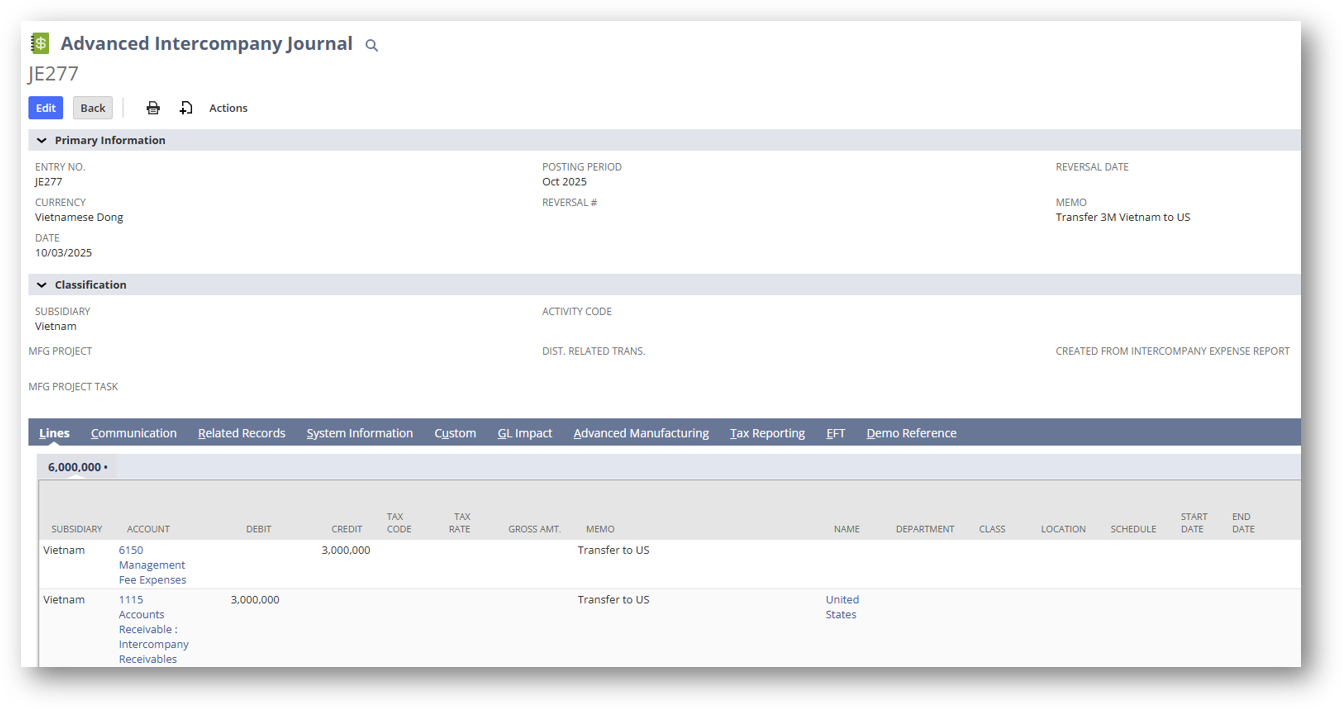
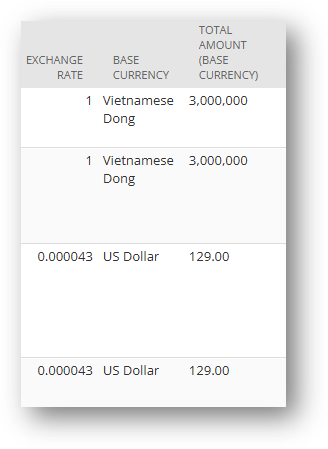
- Note: If you scroll to the right of the Journal Entry in NetSuite, there are fields for viewing the exchange rate, base currency and total amount. In this example, 3,000,000 Vietnamese Dong transfers to 129 US Dollars.
Download or Update Intercompany Journal Entries
- In a New Intercompany Journal Entry Template, enter a Journal Entry # in cell C4.
- Select Download Intercompany Journal Entry.
- If needed, changes can be made to a downloaded Journal Entry and the option to Update JE# will be available.